
Give your agency access to Google Tag Manager
In Google Tag Manager, open Admin › User Management, add your agency's email addresses with the account permission User, and give them Publish on your website's container. Keep the Administrator permission for your own team.
Steps
-
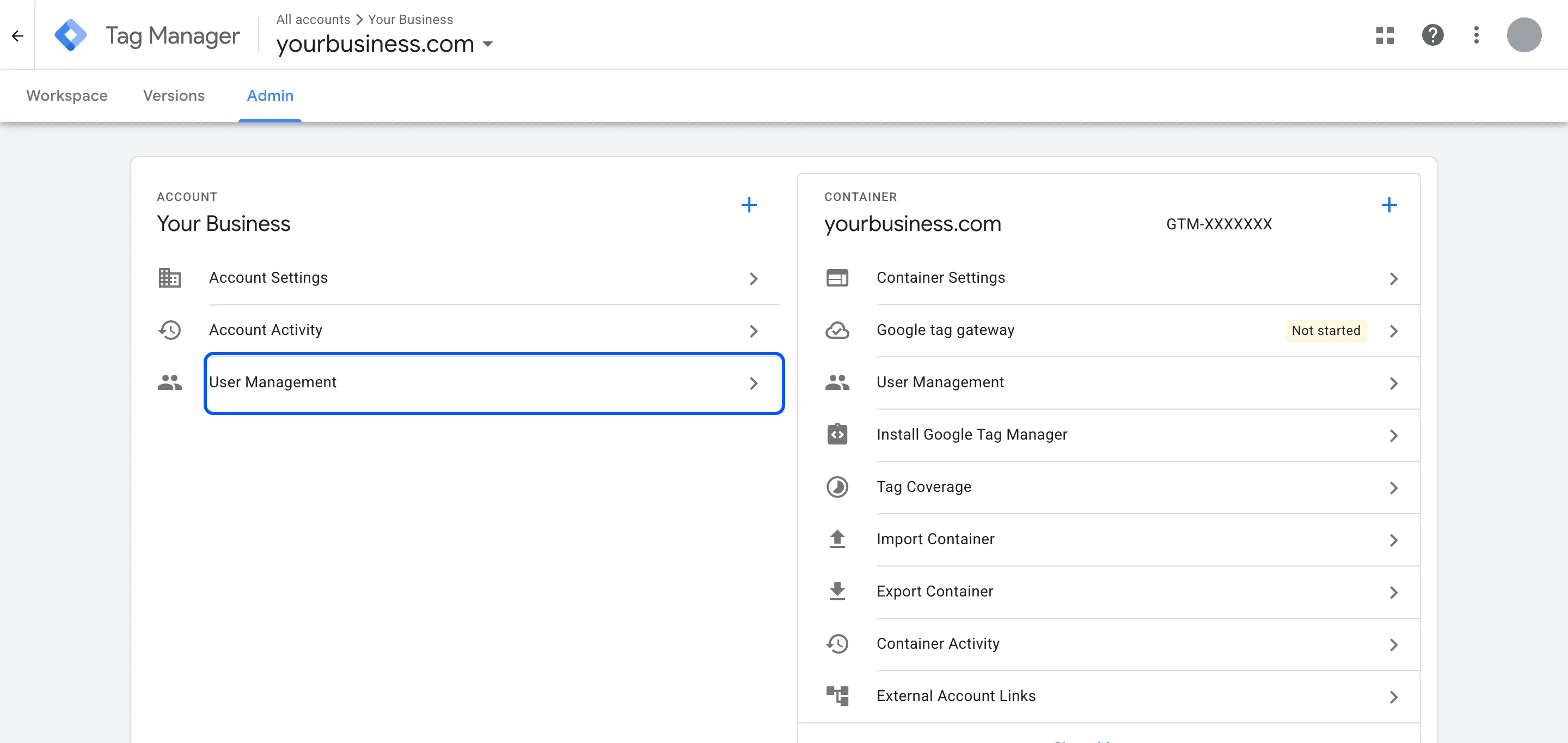
In Tag Manager, click Admin.
-
In the Account column, open User Management.
-
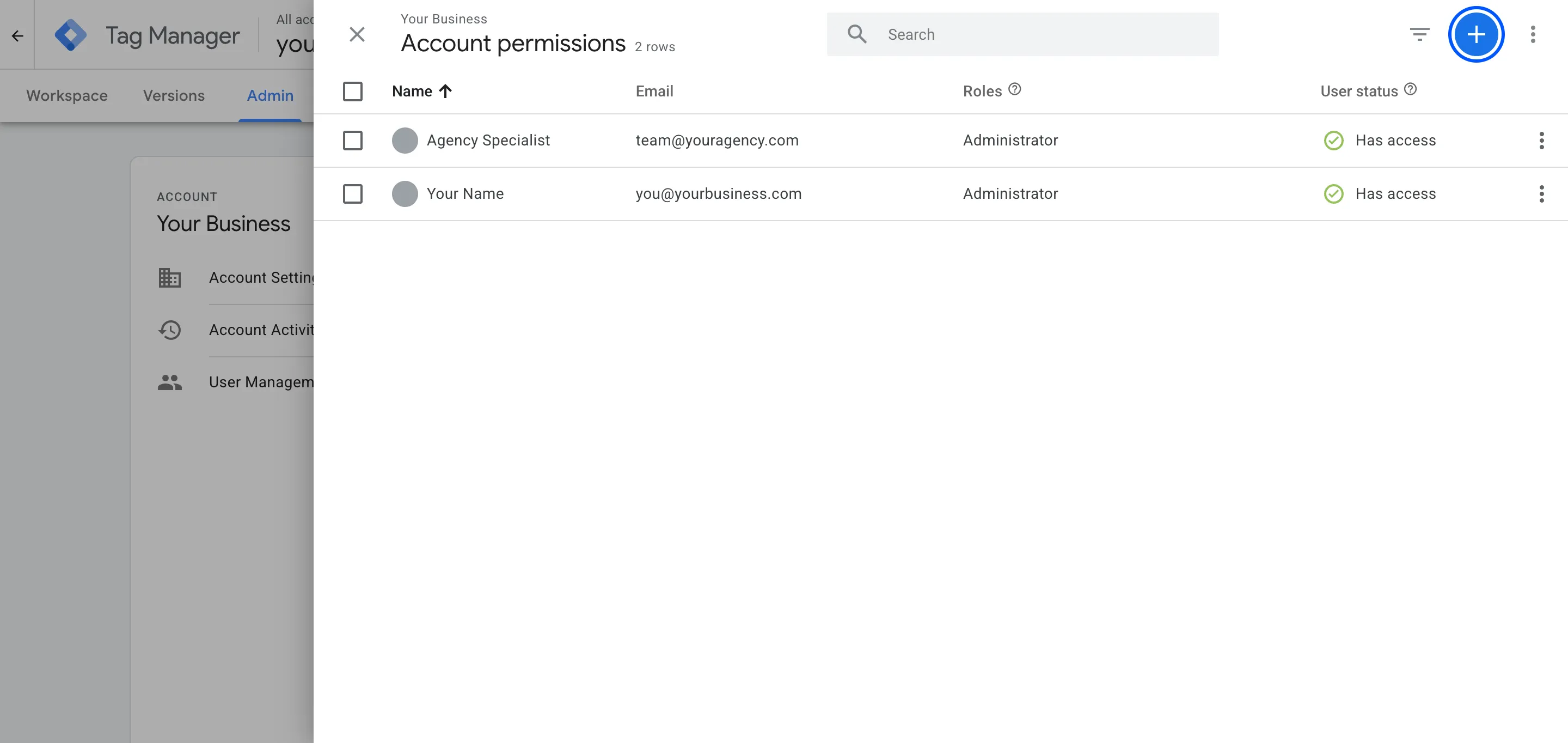
Click the blue + button, then Add users.
-
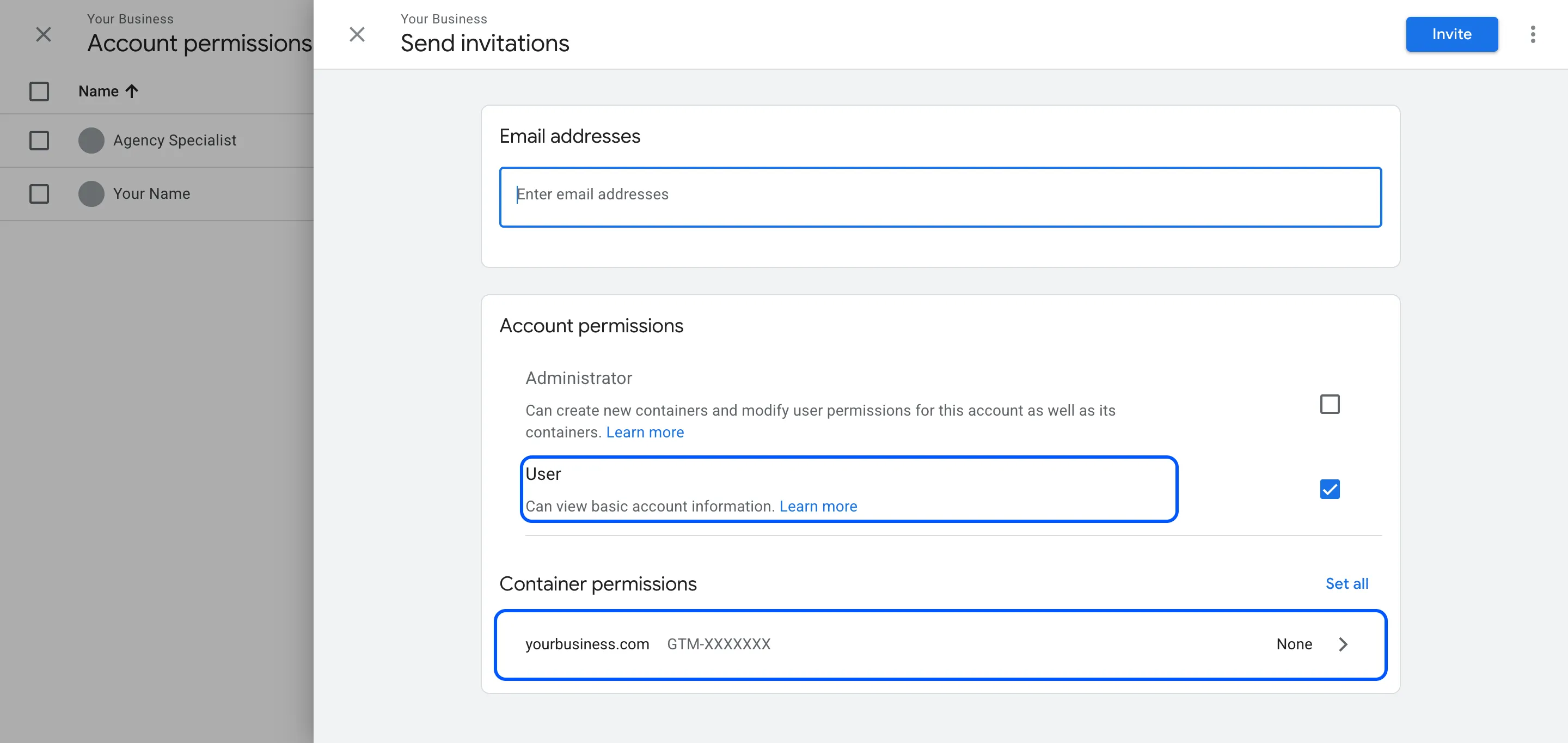
Enter the email addresses your agency sent you. Under Account permissions, leave User ticked.
-
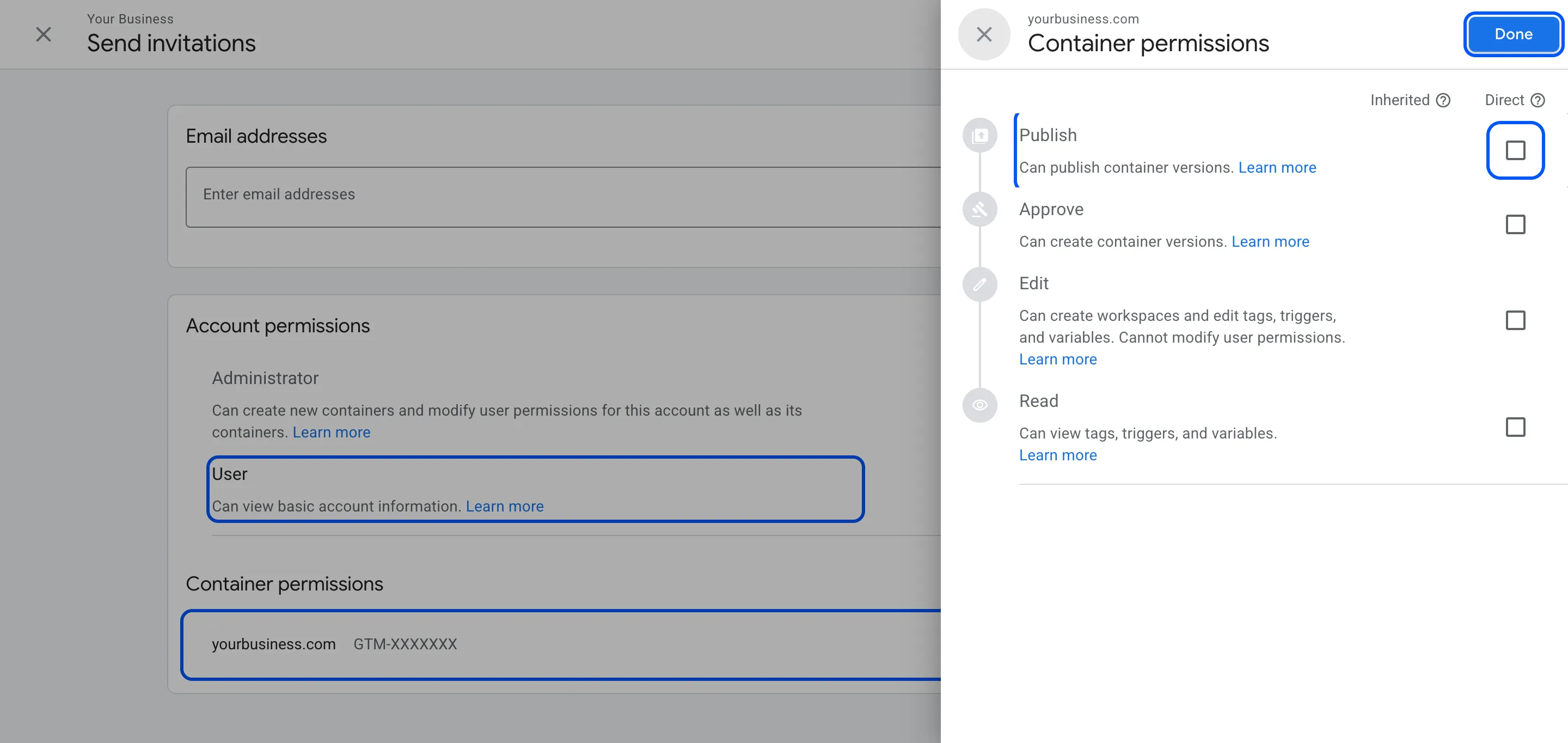
Under Container permissions, click your website’s container, tick Publish and click Done.
-
Click Invite.
Our notes
- Which permission to give: User on the account, Publish on the container. Administrator also lets someone create containers and manage people, so keep it for your team.
- Google’s own advice: the GTM help page says to make sure your account “is managed by someone in your organization, not an external agency”, and to keep at least two administrators. We agree.
- Container permissions, shortest version: Read lets them look, Edit lets them draft changes, Approve lets them prepare versions, Publish lets them make changes live.
- What happens next: we audit what’s already in the container before adding anything, so we don’t fire tags twice.
Part of: Starting Google Ads with us: your checklist · Tracking and website work with us: your checklist
Hiring help with your ads? We run Google and Meta Ads for businesses in the UK, EU and US. Book a free call
FAQ
Questions
Why Publish and not just Edit?
With Edit, the agency can prepare changes but can't make them live. Every fix then waits for you to publish. Publish lets them ship tracking fixes the same day, and Tag Manager keeps every version so any change can be rolled back.
My developer set up GTM under their own account. What now?
Ask them to add you as Administrator on that account, then remove themselves or drop to User. Google deletes an account or container that's left with no administrator.